Documentation
Introduction
Connections between cVGZ and partners are set up through "HTTPS" using the encryption protocol TLS 1.2 based on an X.509 certificate. Authentication is based on a generated API Key. The format used for API calls is REST/JSON. More recently the OpenID Connect (OIDC) authentication connection method has been added to use instead of API keys with specific partners.
Because the OIDC method is new, when not explicitly mentioning OIDC, OTP is implied! The OIDC specific documentation can be found in the chapter OpenID Connect (OIDC) authentication.
Production Urls
Developer Portal: https://developer.pr.zorgapp.vgz.nl, API Gateway: https://pr.zorgapp.vgz.nl, Partner Dev Sandbox: https://servicestoresandbox.vgz.nl
Customer
When we talk about a customer in the documentation below, we mean a VGZ member with an (active) insurance policy.
Partner processes
The cVGZ App Store currently supports the following partner processes for it's label apps:
In the following paragraphs, each process is described in steps and also is indicated which API methods are used. See also "APIs" for more information on how to invoke the methods.
API Subscription
An active subscription is required to be able to invoke the APIs. This can be requested from VGZ and be found on the Profile page in the Developer Portal. Both a primary and secondary key are available per subscription. This makes it possible to periodically do a key rollover. The subscription key must be specified in the Ocp-Apim-Subscription-Key header, for the API to actually be used.
Deeplinks
Deeplinks are used in the processes below to open the partner app or the Zorg app for the cVGZ label such as "VGZ Zorg app" or f.e. the "IZA Zorg app". The deeplink of the partner app must be provided by the partner. The only condition for this is that a token is added at the end of the deeplink, so that the partner can use it to request the relationship key (customer id).
For OIDC partner apps, no token is added when opening the partner app from the appstore.
Partner app
Open partner app with token (provided by partner)
Example: appidentifier://vgz-connect/{token}Connect partner app
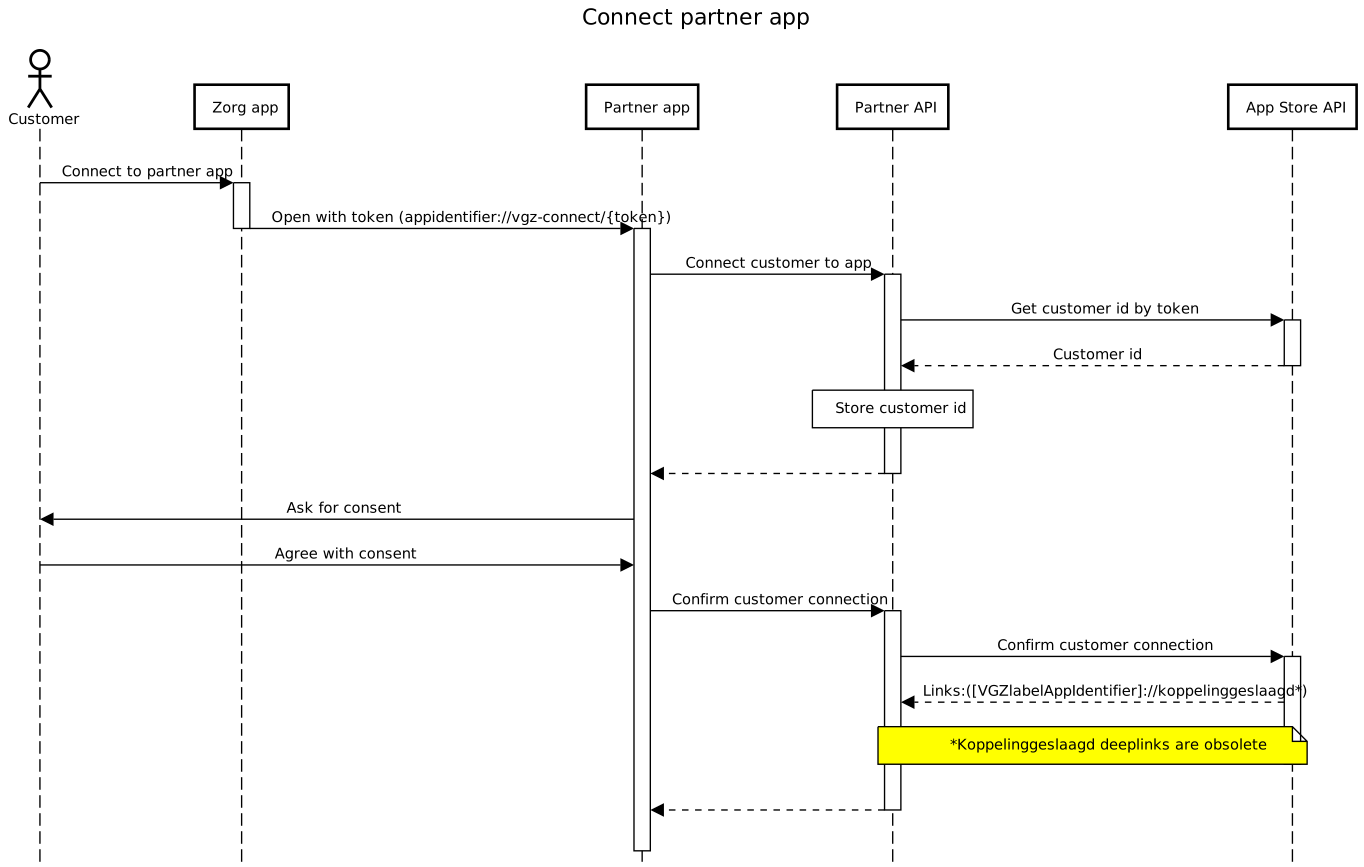
Connecting a partner app is done without the need for exchanging sensitive data. Neither party knows the customer/relationship number of the other party. This is possible because a shared key is agreed in the linking procedure. Using the shared key, the two accounts can be associated with one another. This operation is described below:
The Zorg app opens the partner app through a deeplink in which a one time password (OTP) with a limited validity period has been processed; The deeplink to be used must be supplied by the partner.
The partner app passes the OTP to the backend of the partner;
The backend of the partner requests a relationship key based on the OTP and registers this relationship key as belonging to the logged in user; see also: Get customer by token.
The partner app asks the user for permission (consent) to establish the connection.
The backend of the partner confirms the connection to the AppStore API, which completes the connection; see also: Confirm customer connection
In addition to the steps above, the Zorg app asks for permission to establish the connection and the partner app may do the same.
Open partner app
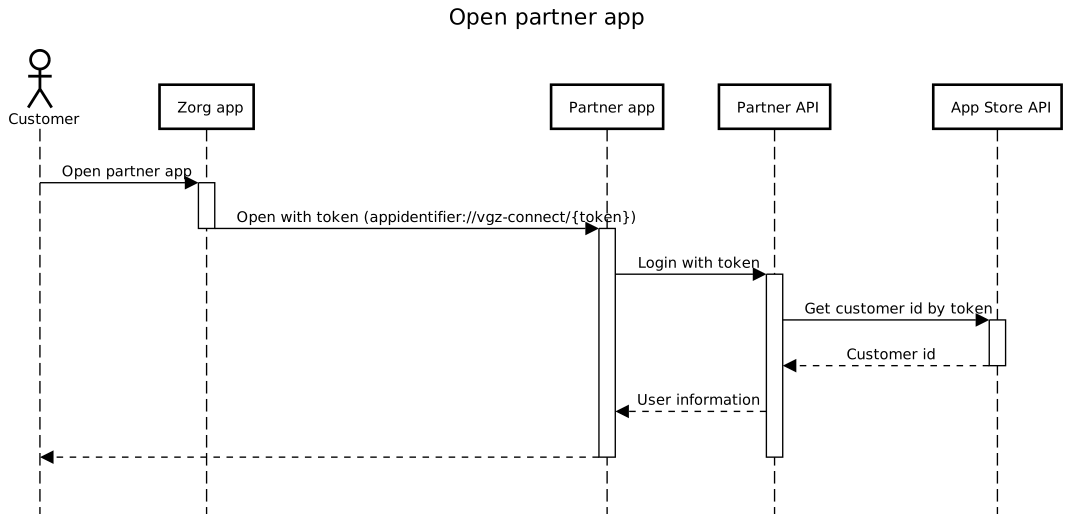
No sensitive data is exchanged when opening a partner app, because authentication takes place on the basis of the previously agreed relationship key (Customer id in the diagram).
The Zorg app opens the partner app through a deeplink in which a one time password (OTP) with a limited validity period has been processed; The deeplink to be used must be supplied by the partner.
The partner app logs out any logged in user and starts a VGZ specific login procedure at the backend of the partner;
The partner's backend requests the relationship key from the AppStore API on the basis of the OTP; see also: Get customer id by token
The partner's backend searches for the correct account based on the relationship key and logs it in.
Request customer information
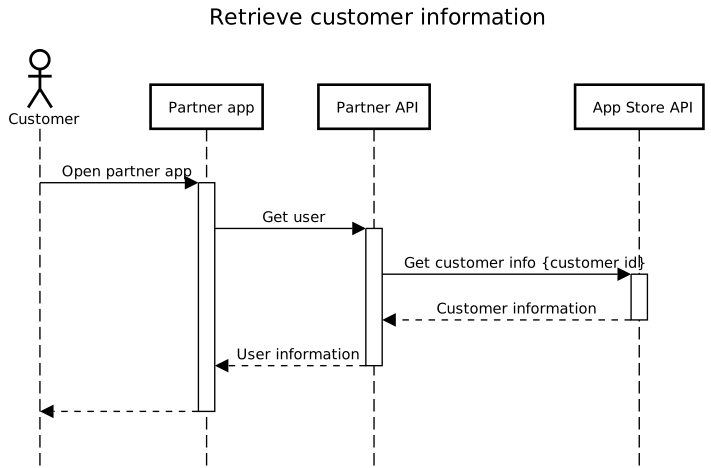
It is also possible for partners to request additional information about a user. This also takes place on the basis of the previously agreed relationship key. The Exact information being returned depends on the agreements between VGZ and the partner. For example, whether the user is insured and for which brand.
The user opens the partner's app;
The partner's backend requests customer information from the AppStore API on the basis of the already stored relationship key. It then returns the available customer information, such as whether the customer is insured; see also: Get customer info
The partner's backend uses the information to, for example, activate a specific module that is only available to VGZ policyholders;
The Partner app shows the module to the user.
Send notification
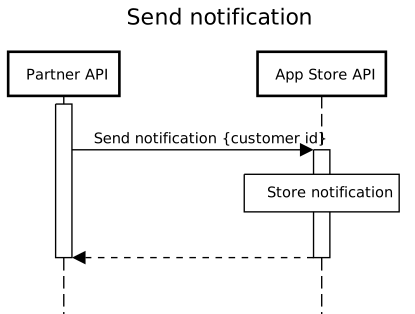
It is also possible for partners to send notifications to the Zorg app. This also takes place on the basis of the previously agreed relationship key.
The partner's backend addresses the AppStore API with a relationship key and notification details; see also: Send notification
The AppStore API stores the notification.
Disconnect partner app
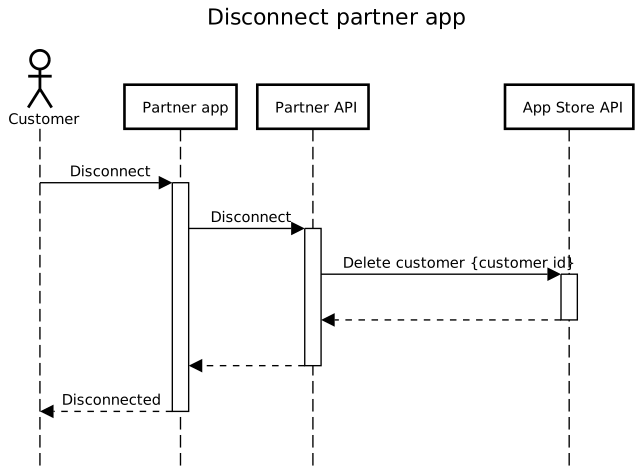
When a user wants to undo the connection, this can be done from both the VGZ app and the partner app.
The partner app invokes the partner API to remove the connection;
The backend of the partner invokes the AppStore API with a relationship key; see also: Delete customer
The partner app shows a confirmation to the user.
Update expired consent
When connecting the partner app, the Zorg app shows the user a consent screen where permission is requested to establish the connection.
When other data is exchanged over time and as a result the consent has been changed, the user must be asked for permission again. This is indicated when the customer information is requested.
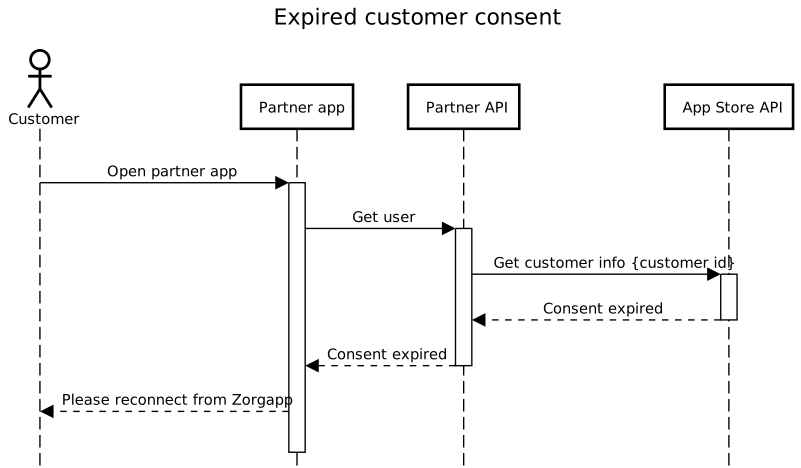
Partner app consent has expired
The user opens the partner's app;
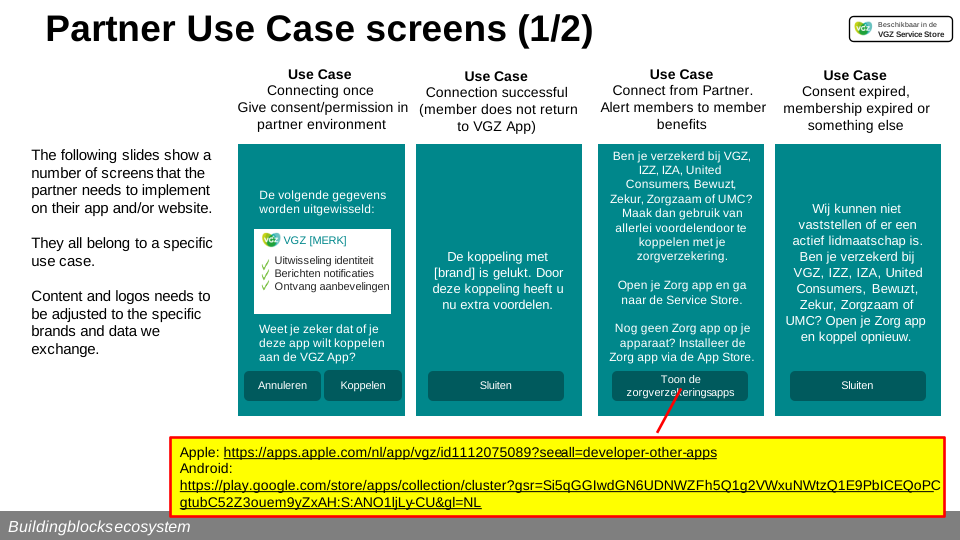
The partner's backend requests customer information from the AppStore API on the basis of the already stored relationship key. When it turns out that the consent the user agreed to previously has been updated, the user will have to accept the consent again so that data can be exchanged with the partner again; see also: Get customer info. The partner app should show the user a message saying he should re-establish the connection from the VGZ Zorg app. See also the image below: "Partner use case screen 1/2, use case 4"
Connection initiated by Third Party
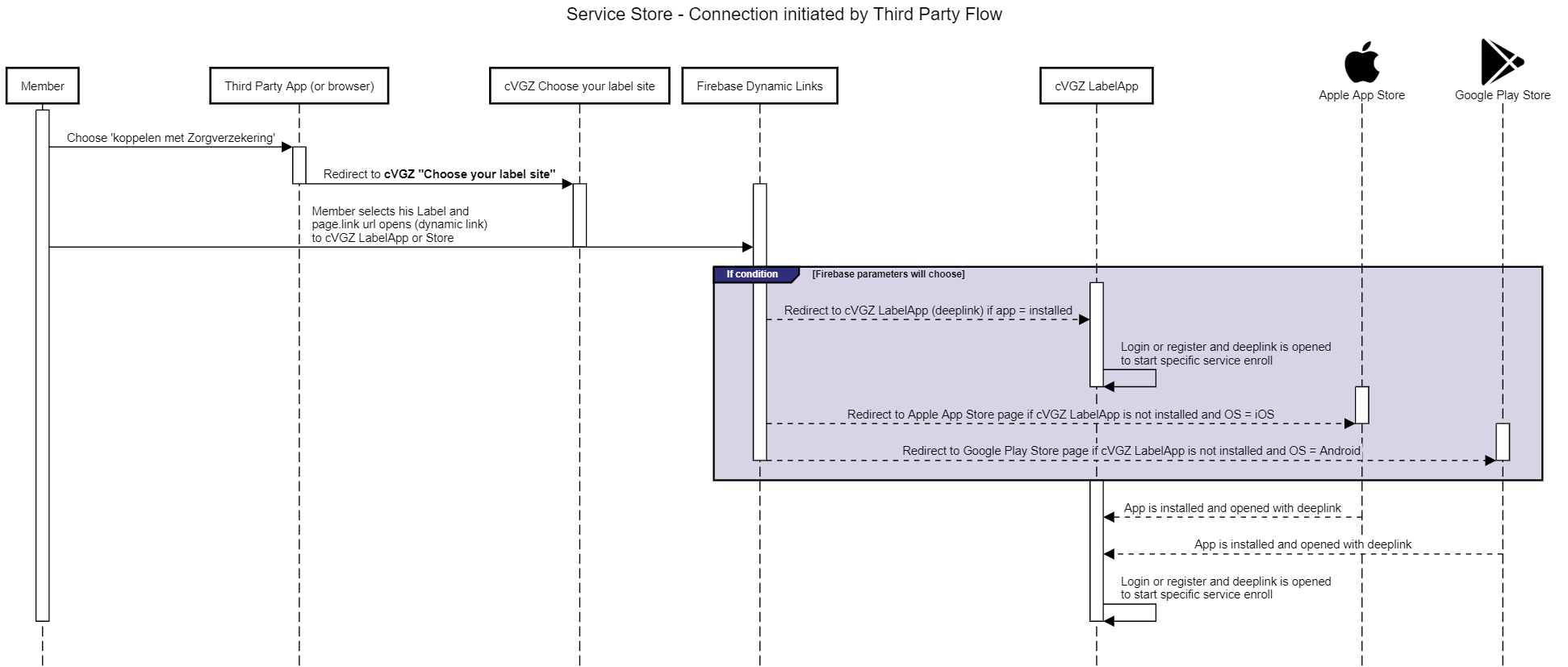
Sometimes the connection does not have to be started from the "[VGZ] Zorg App" but is initiated from the "Partner App". To streamline this process, a link page has been placed on the Coöperatie VGZ domain. This has been deliberately placed on the Coöperatie VGZ environment so that it can serve multiple labels. The user then only has to click on the link/logo of his/her label.
This process works as follows.
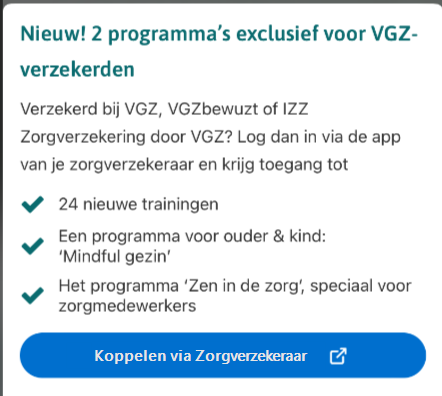
A Partner App offers the possibility of linking (for example to offer extra services)
A button in the app refers to the link page (Koppelen via Zorgverzekeraar)
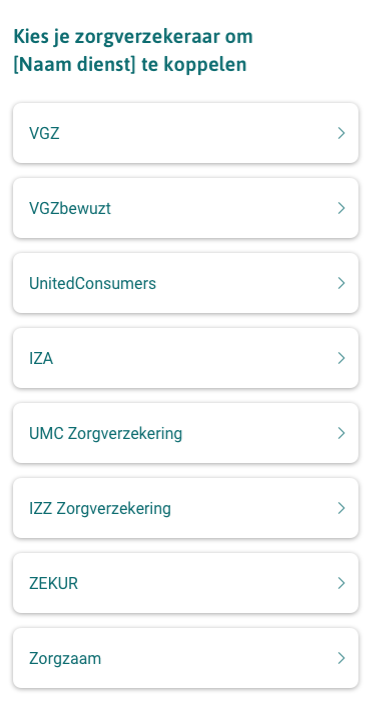
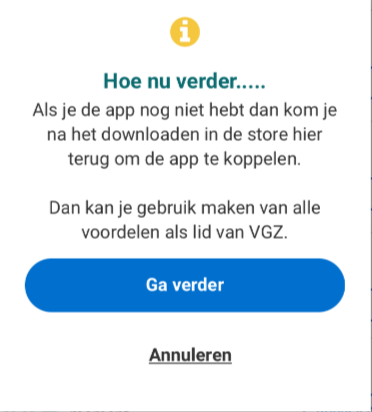
The correct label can be selected on the link page. The links refer to so-called Firebase Dynamic Links. This dynamic link can detect whether an app is already installed (and will then open it with the provided parameters), or whether it still needs to be installed. If it still needs to be installed, it will refer to the Google Play or Apple App store.
Even after installing a new LabelApp, and going through the registration process (DigiD), the Dynamic link will provide the deeplink to the specific service to enroll.
Standard attach flow for the specific app is started in the App:
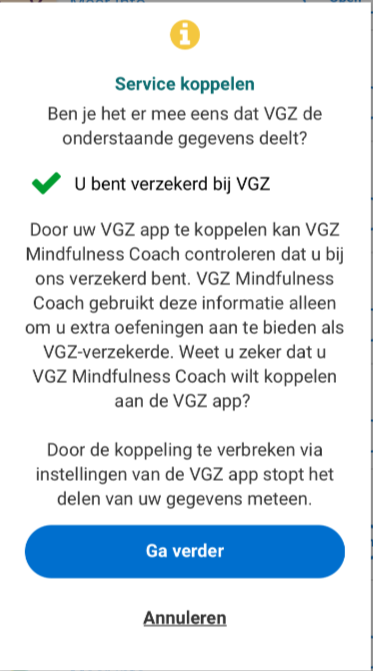
The App was already installed so will now be opened with the pairing parameter.
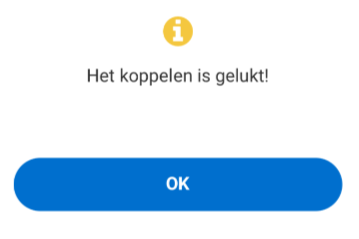
The linking process is now complete.
Workflow:
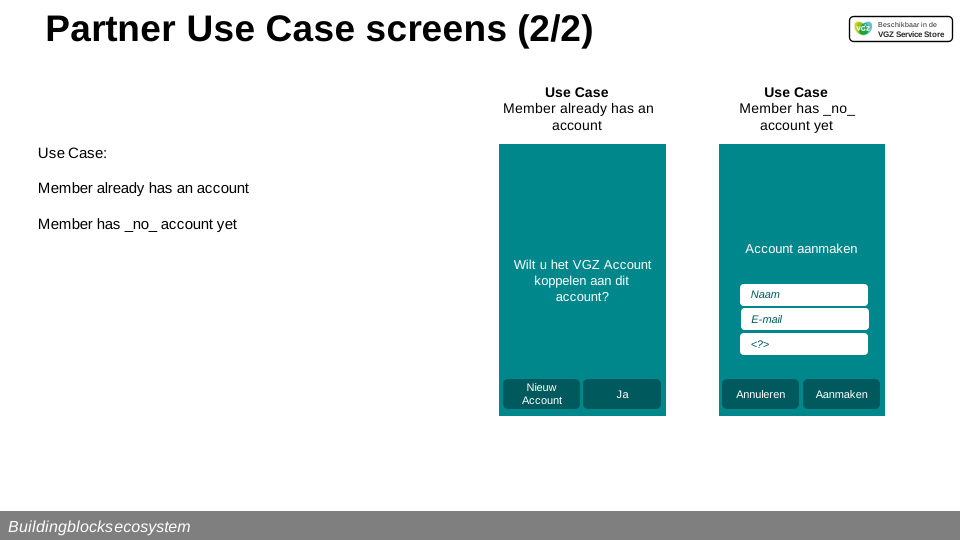
Partner Use Case screens
The following two slides show the specific use cases that the partner needs to implement on their app and/or website.
OpenID Connect (OIDC) authentication
After agreement between cVGZ and partners, authentication can be done using OpenID Connect (OIDC). Within this context the partner app acts as the client.
Our authorization server supports the Authorization Code Grant Flow with Proof Key for Code Exchange (PKCE) as defined by RFC 7636 .
PKCE enhances the security of the Authorization Code Grant flow by utilizing a dynamically created cryptographically random key (code verifier) and its SHA-256 hashed value (code challenge) to verify the client.
Key points to note about our OIDC implementation:
Currently only the
openidscope is supported, which makes the token endpoint return an ID token.Parameter login_hint is mandatory and its value will be provided by the VGZ app (as shown in 'Example authorization request')
The token endpoint uses the authentication method
client_secret_post, which requires the client to provide its client_id as HTTP POST parameter.Because we leverage PKCE, which provides an additional layer of security, the need for a client secret is eliminated.
Upon successful validating the token request, the token endpoint returns an access token, refresh token, and an ID token. The ID token includes the customer ID as the
sub(subject) claim, providing a unique identifier for the customer.Once the customer has been authenticated and the client has retrieved an access token, the partner can make API calls using the access token as bearer token in the
Authentication-header.
A client ID can be provided to partners that support OIDC. Please provide the VGZ team (vgzservicestore@vgz.nl or Slack channel) with the redirect URI's of your app (HTTPS, deeplink or both).
Endpoints
Issuer: https://pr.zorgapp.vgz.nl/appstore/oidc/
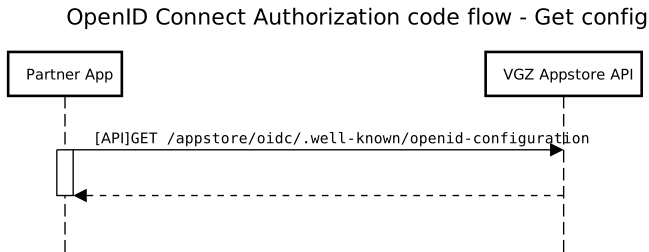
Configuration document: https://pr.zorgapp.vgz.nl/appstore/oidc/.well-known/openid-configuration
Authorization endpoint: https://pr.zorgapp.vgz.nl/appstore/oidc/authorize
Token endpoint: https://pr.zorgapp.vgz.nl/appstore/oidc/token
Example OpenID configuration request
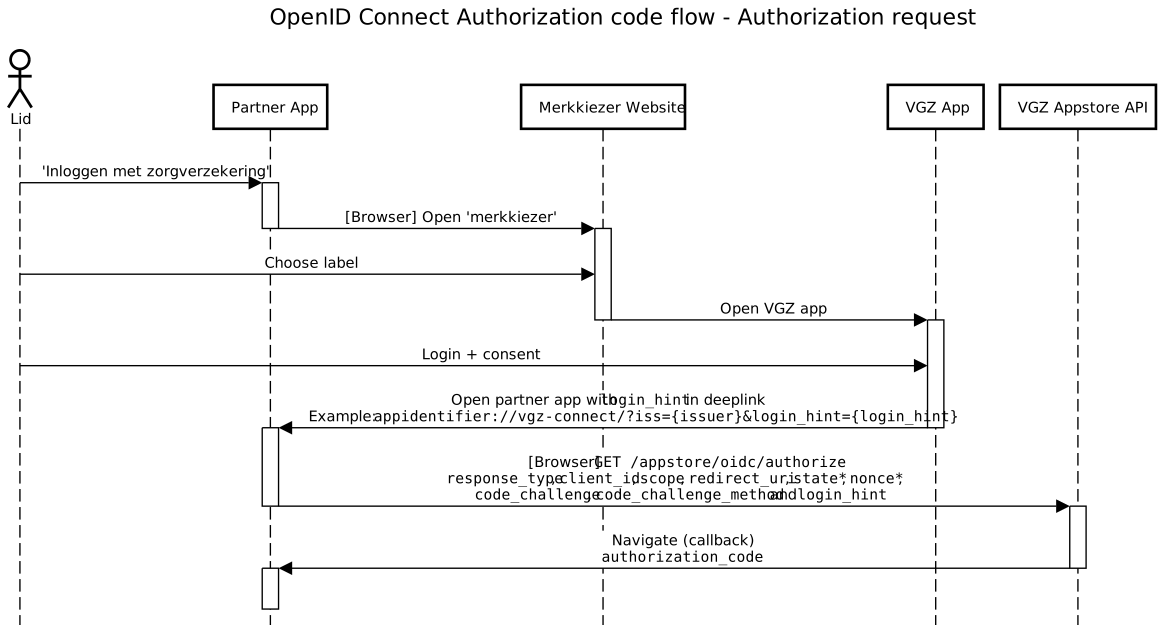
Example authorization request
To initiate the authentication the client directs the customer to the constructed URI using an HTTP redirection response, or by other means available to it via the user-agent.
For example, the client directs the user-agent to make the following HTTP request using TLS (with extra line breaks for display purposes only):
GET /appstore/oidc/authorize?response_type=code&client_id=EXAMPLE&scope=openid&redirect_uri=https%3A%2F%2Fclient.example.org%2Fcb&code_challenge=Z1L2TEbL9FgqLgay9vcIO_Mu2yNzkI3i24bRs9ZN7zA&code_challenge_method=S256&login_hint=otp%3Af0d7625d152a436f9ce12a2f125a511b HTTP/1.1Host: pr.zorgapp.vgz.nl
Example token request
The following is an example of the API call the client makes to retrieve the tokens (with extra line breaks for display purposes only):
POST /appstore/oidc/token HTTP/1.1Host: pr.zorgapp.vgz.nlContent-Type: application/x-www-form-urlencoded
grant_type=authorization_code&code=52b80e7f-e61d-060f-3a85-254944a413f9&redirect_uri=https%3A%2F%2Fclient.example.org%2Fcb&code_verifier=Eg1f10ChUXUUnhWNytsodOMv9K8cquMX_aCyQmlw7ac&client_id=EXAMPLE
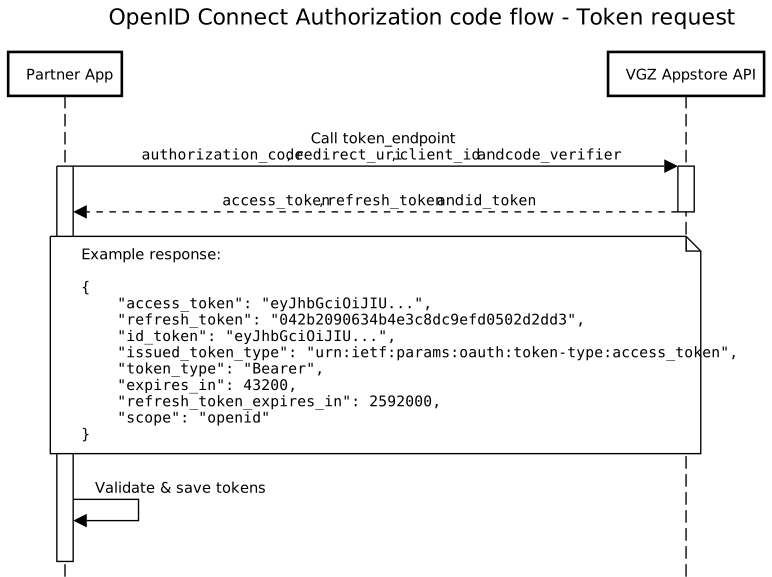
Example refreshing tokens
The following is an example of the API call the client makes to retrieve the refreshed tokens (with extra line breaks for display purposes only):
POST /appstore/oidc/token HTTP/1.1Host: pr.zorgapp.vgz.nlContent-Type: application/x-www-form-urlencoded
grant_type=refresh_token&refresh_token=042b2090634b4e3c8dc9efd0502d2dd3&client_id=EXAMPLE
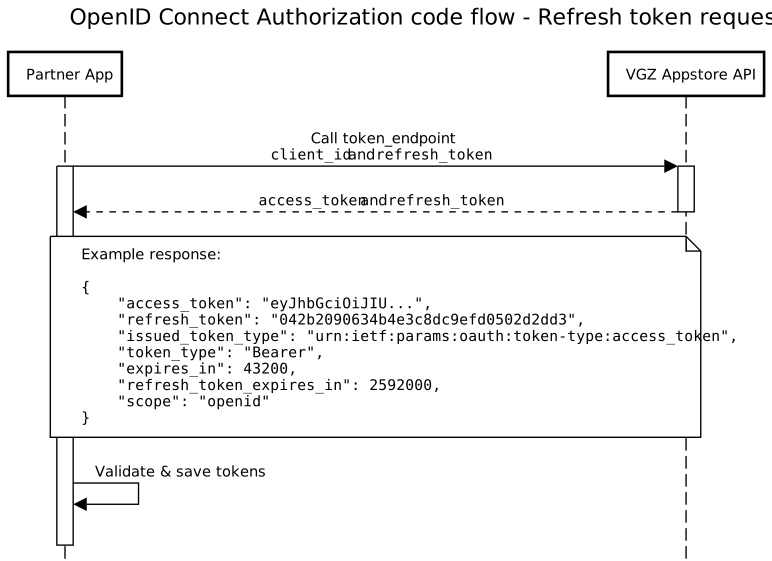
Example API call
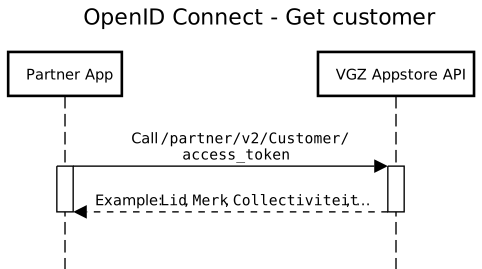
The following is an example of the API call the client makes to retrieve customer information (with extra line breaks for display purposes only):
GET /appstore/partner/v2/customer/ HTTP/1.1Host: pr.zorgapp.vgz.nlAuthorization: Bearer <access-token>
Note that the OIDC endpoints do not require the client to explicitly provide a customer ID. The provided access token already contains this ID.
VGZ Service Store Sandbox
Introduction
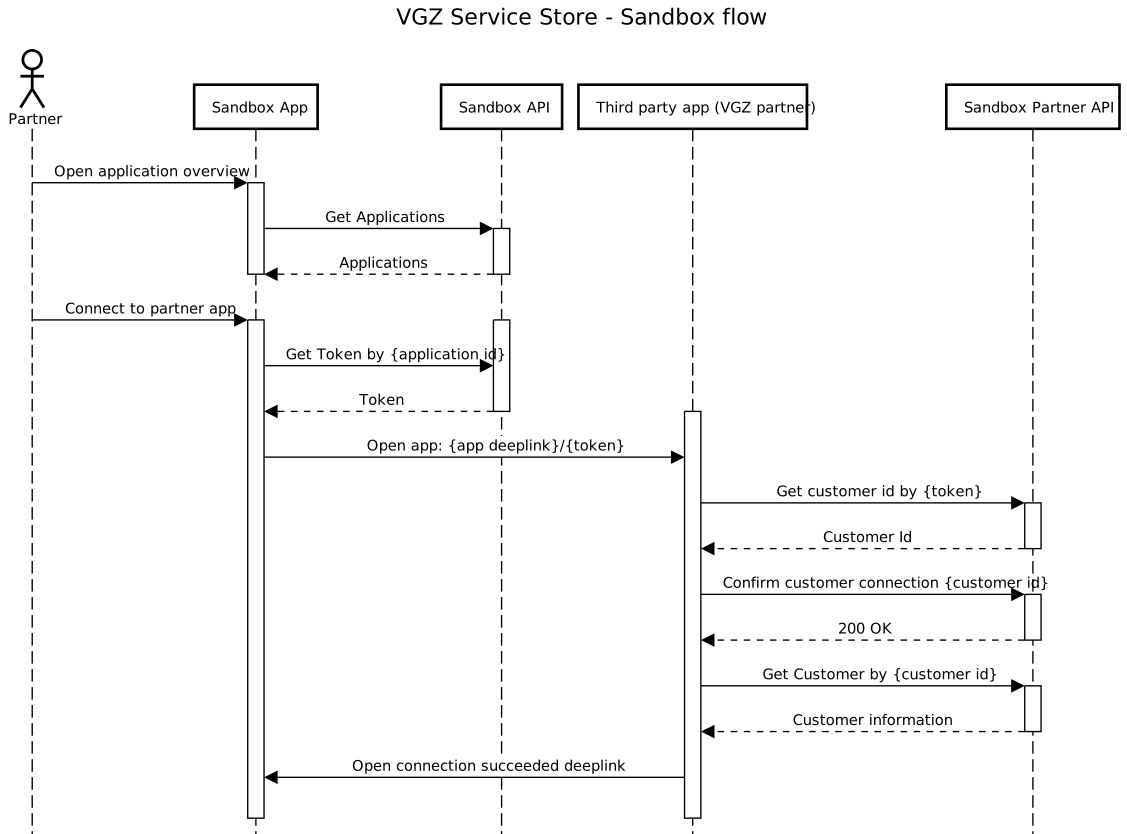
The Service store sandbox is meant as a replacement for the VGZ Zorg App during the testing phase. By using this Sandbox there is no need to create or use additional accounts for login like DigiD or OneGini (like we normally use in the VGZ Zorg App).
Down below is a workflow of the Sandbox environment.
Creating a Service Store Sandbox App
The url of the Service Store Sandbox environment is: https://servicestoresandbox.vgz.nl/
Navigate to this url.
The first time you navigate to the Developer Sandbox url there are no services or apps connected.
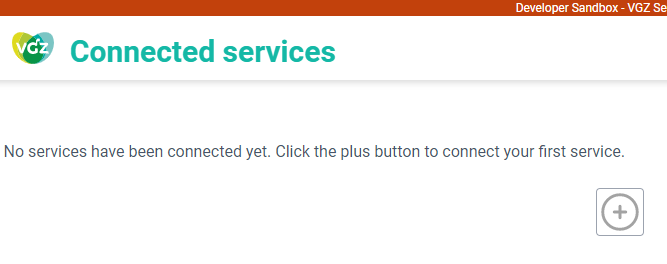
Press the “Settings” button on the bottom of the page.

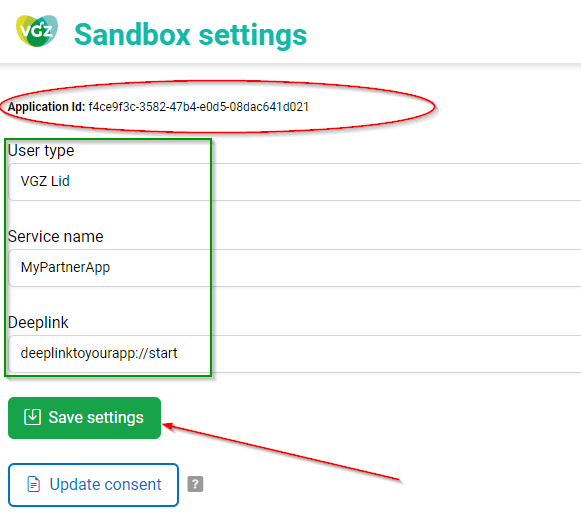
Fill in the fields (User type, Service name and Deeplink) and press the “Save settings” button.
Please note that next to a subscription key, the generated Application Id also is used when doing API calls.
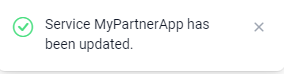
There will be a response on the page that the settings are saved.
The Sandbox Application is now ready to be used.
Important! Please note that the API key can be found on the profile page of the API Management Developer portal, (https://developer.pr.zorgapp.vgz.nl/profile) This key must be sent as  Ocp-Apim-Subscription-Key header.
There should be a subscription listed as "Sandbox App %Name Developer%". If it's not available, then please contact the Service Store team so they can connect a subscription to your account.
Click the Demo icon on the bottom.


Press the “Connect” button of your newly created Service/App
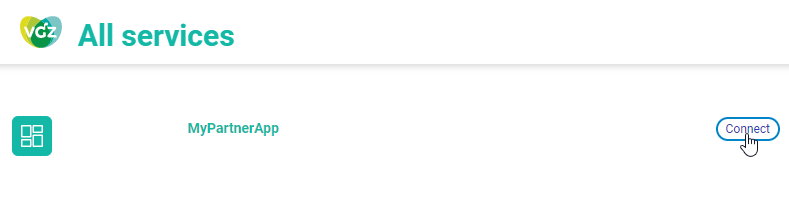
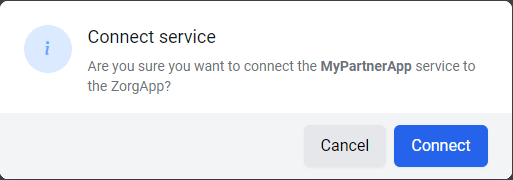
As you can see in the debugging screen (Browser F12) there is a connection trying to be made with the deeplink and the unique client code, something like deeplinktoyourapp://start/fc2e0f0bdc00494daaec19a3b9f112bf
Consent Update
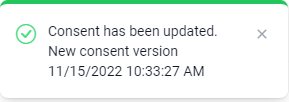
For testing the consent update there is also a feature available. Go to “Settings” and press “Update Consent”. A message will appear that the consent has been updated and is in an expired state.
Sandbox User Type
In the Sandbox User Type field it is possible to set a specific user type, like for example "Lid" True or False, or Collectiviteit true or False, etc. This can be simulated by changing the User Type.
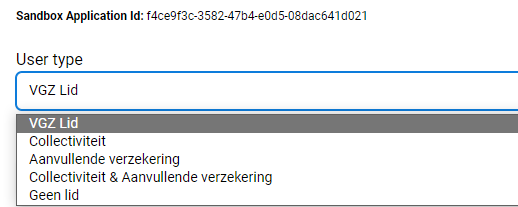
Please note that the Sandbox will always return a complete set of values for testing purposes.
For example:
{
    "customerId": "e5891e371536439082583a21ab9283fa",
    "information": [
        {
            "key": "Lid",
            "value": "true"
        },
        {
            "key": "Merk",
            "value": "VGZ"
        },
        {
            "key": "Collectiviteit",
            "value": "true"
        },
        {
            "key": "AanvullendeVerzekering",
            "value": "false"
        },
        {
            "key": "Naam",
            "value": "L. de Vries"
        },
        {
            "key": "Geboortedatum",
            "value": "1982-09-07"
        },
        {
            "key": "Email",
            "value": "l.de.vries@example.com"
        }
    ]
}